
The License Usage Summary report within D365FSC has become a source of truth for license reporting. Let’s take a look at what reports are available, how to read / interpret the reports, and what gaps still exist in the reporting.
I also wanted to show how you can use AI to help look for license optimization opportunities as well as more automated solutions if you want help reviewing your licenses.
Where Can the User License Summary Report be Found?
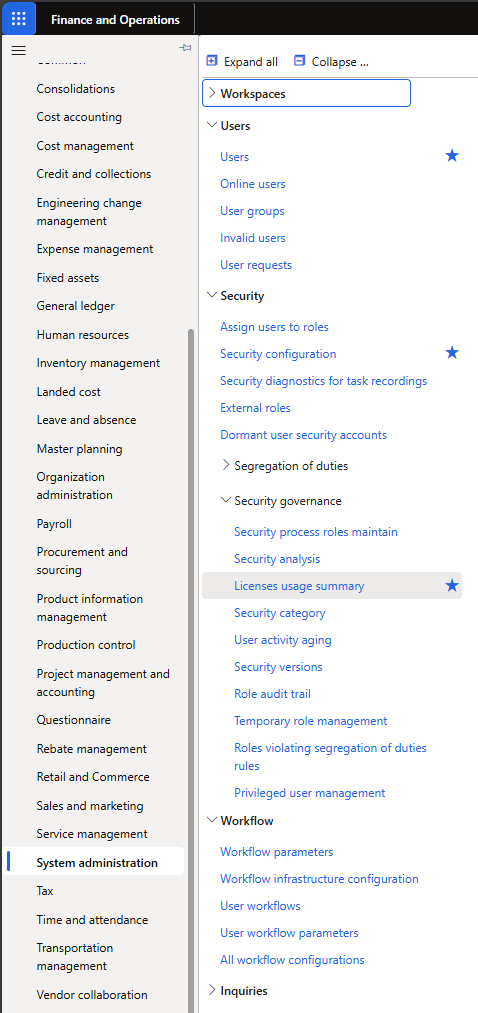
The License Usage Summary report is a part of the ‘Security Governance’ functionality found in the System Administration area of D365FSC:
What Reports Are Available?
The License Usage Summary reports include:
- User Role Licenses
- Role Licenses
- Duty Licenses
- Privilege Licenses
Each report has an ‘overview’ section at the top and a ‘detailed’ section at the bottom showing the individual object accesses and license information for the selected record in the overview section.
Entitled vs Not Entitled vs Not Required
One thing you’ll notice quickly is some new licensing terminology, these reports rely heavily on the the terms ‘entitled’, ‘not entitled’, and ‘not required’ but what do those each mean?
With the change to the licensing methodology, Microsoft has associated certain licenses to each object and access type. So these terms are in reference to whether a particular license meets the requirements of that license at that particular license level.
- Entitled – the current license does meet the license requirements for that object at that access level
- Not Entitled – the current license does not meet the license requirements for that object at that access level
- Not Required – objects that do not have a license requirement
User Role Licenses
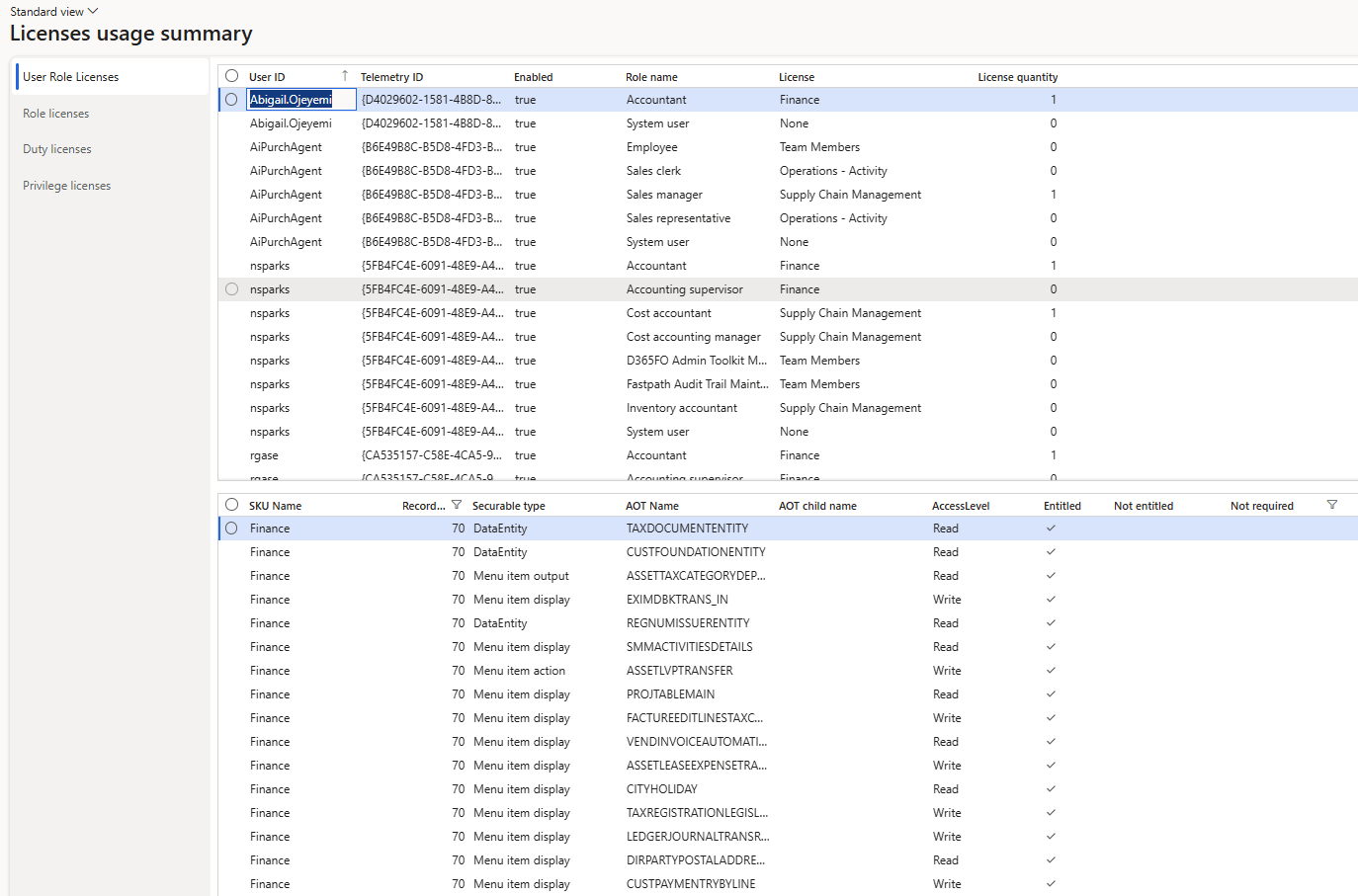
The User Role Licenses report shows each user and the licenses assigned to that user along with the license required for that particular role. The ‘License Quantity’ column then shows whether that license is required for that user. A value of 1 in the License Quantity column means that user is required to be assigned that license, while a value of 0 means that particular license is not required to be assigned to the user. If a user has multiple rows with a value of 1 means that user must be assigned both of those licenses in a base / attach scenario.
For example, in the screenshot below the ‘nsparks’ user has a License Quantity of 1 for both the Accountant role (which requires a Finance license) and the Cost Accountant role (which requires a Supply Chain Management license). So in this case the nsparks users would require both the Finance AND Supply Chain Management licenses assigned to them to be compliant.
The detailed area in the bottom will list out all objects granted to the user by the highlighted user role assignment and whether the object is ‘entitled’ or not for license. In this case because the license is already determined all of the objects should be ‘Entitled’.
Role / Duty / Privilege Licenses
The Role, Duty, and Privilege License reports all follow a similar layout, the overview pane at the top that shows the security layer name, AOT Name, Description, License SKU, and then the number of objects that are entitled, not entitled, and not requiring a license within that security layer.
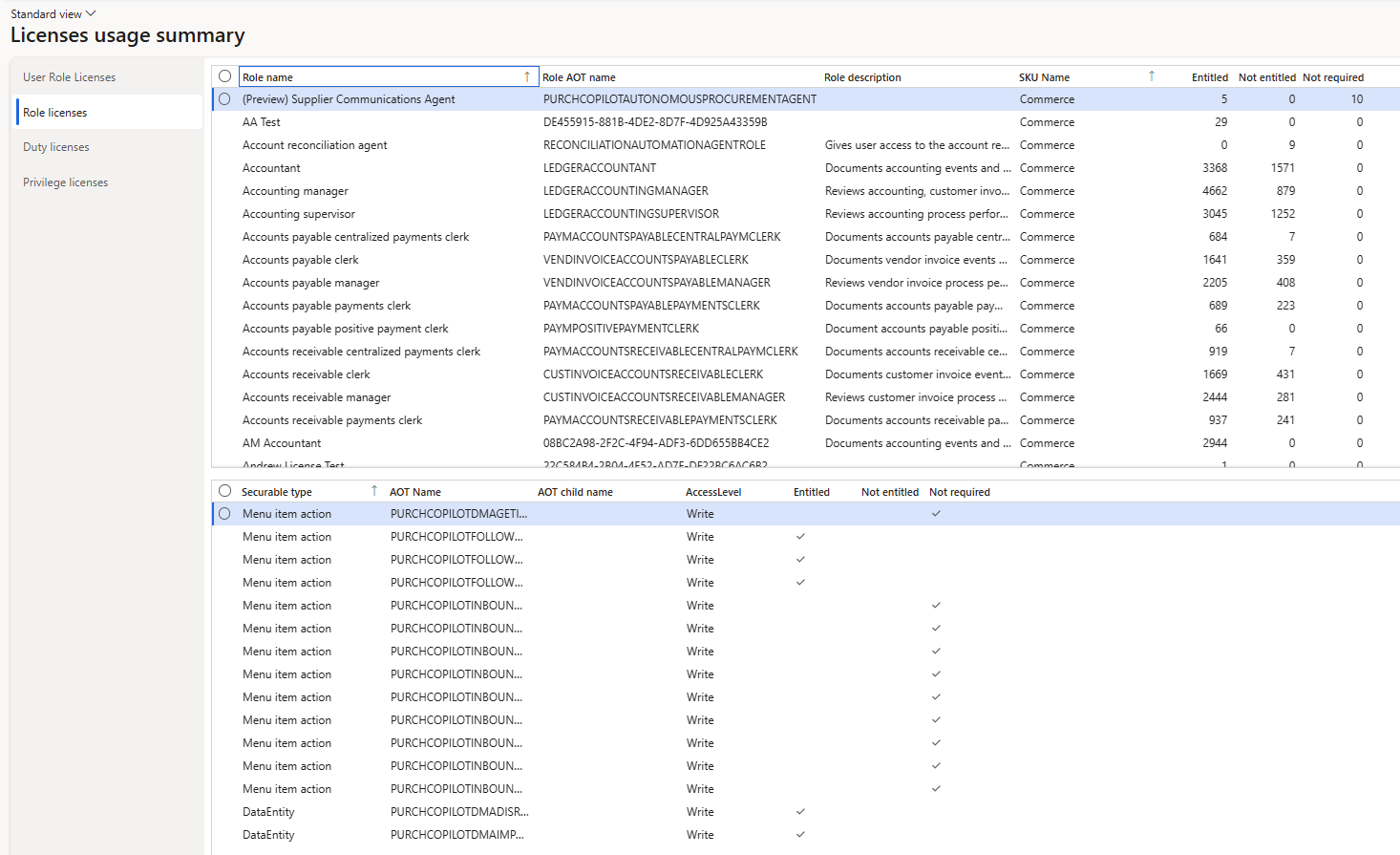
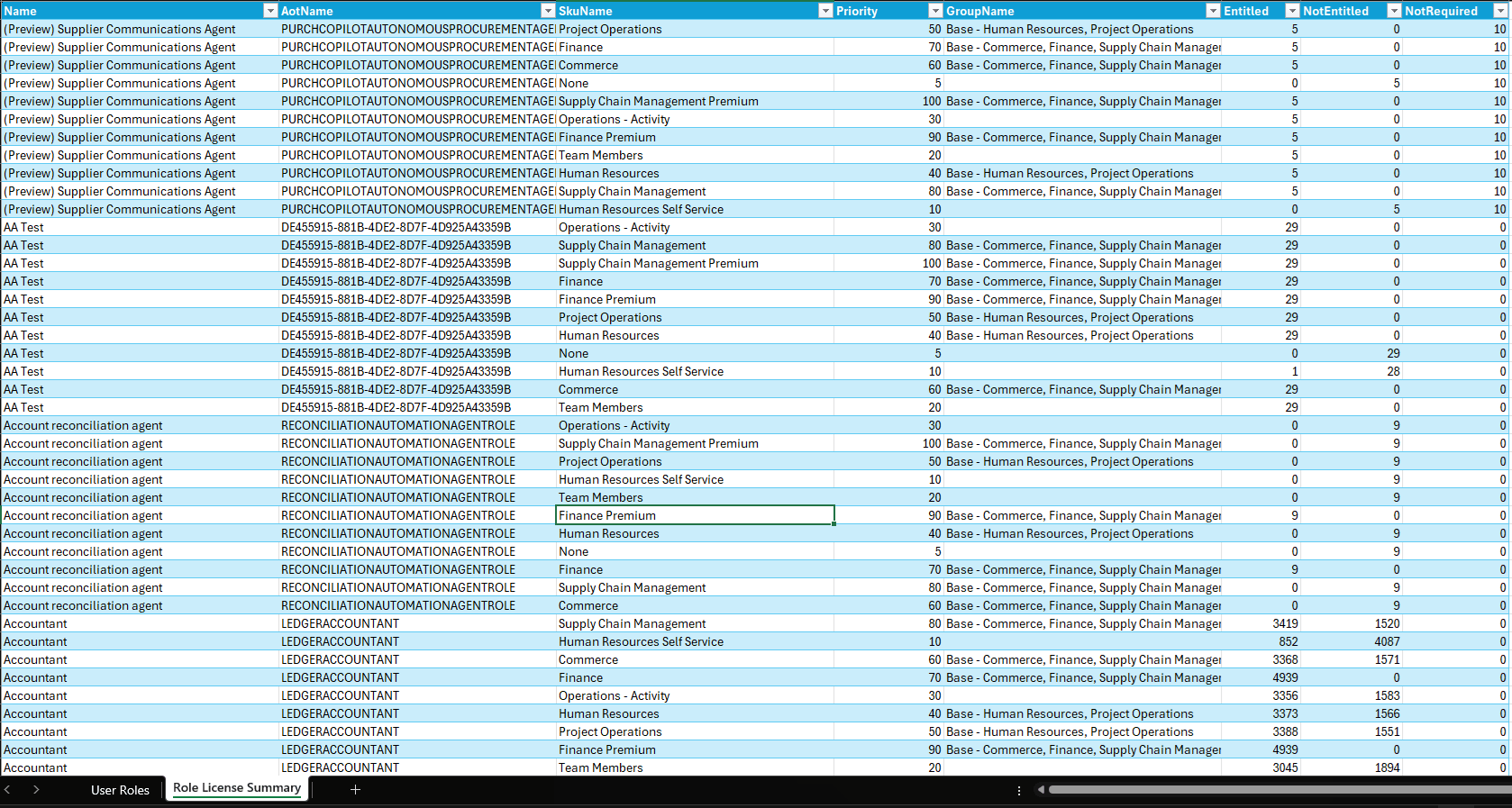
One thing I will point out here though, is that by default the report is not filtered by the name, when we apply a filter to only return a single role we see that multiple rows are actually returned. I was very confused when I first ran this report because I couldn’t figure out why certain roles were requiring a particular license. Once filtered, the report will show each license and the number of entitled / not entitled objects within that role that are covered by each license. To determine which license is required for the role, we are looking for a license that has a 0 for the ‘not entitled’ column. In the example below, for the Accountant role we can see either the Finance or Finance Premium licenses are required for the role to be compliant.
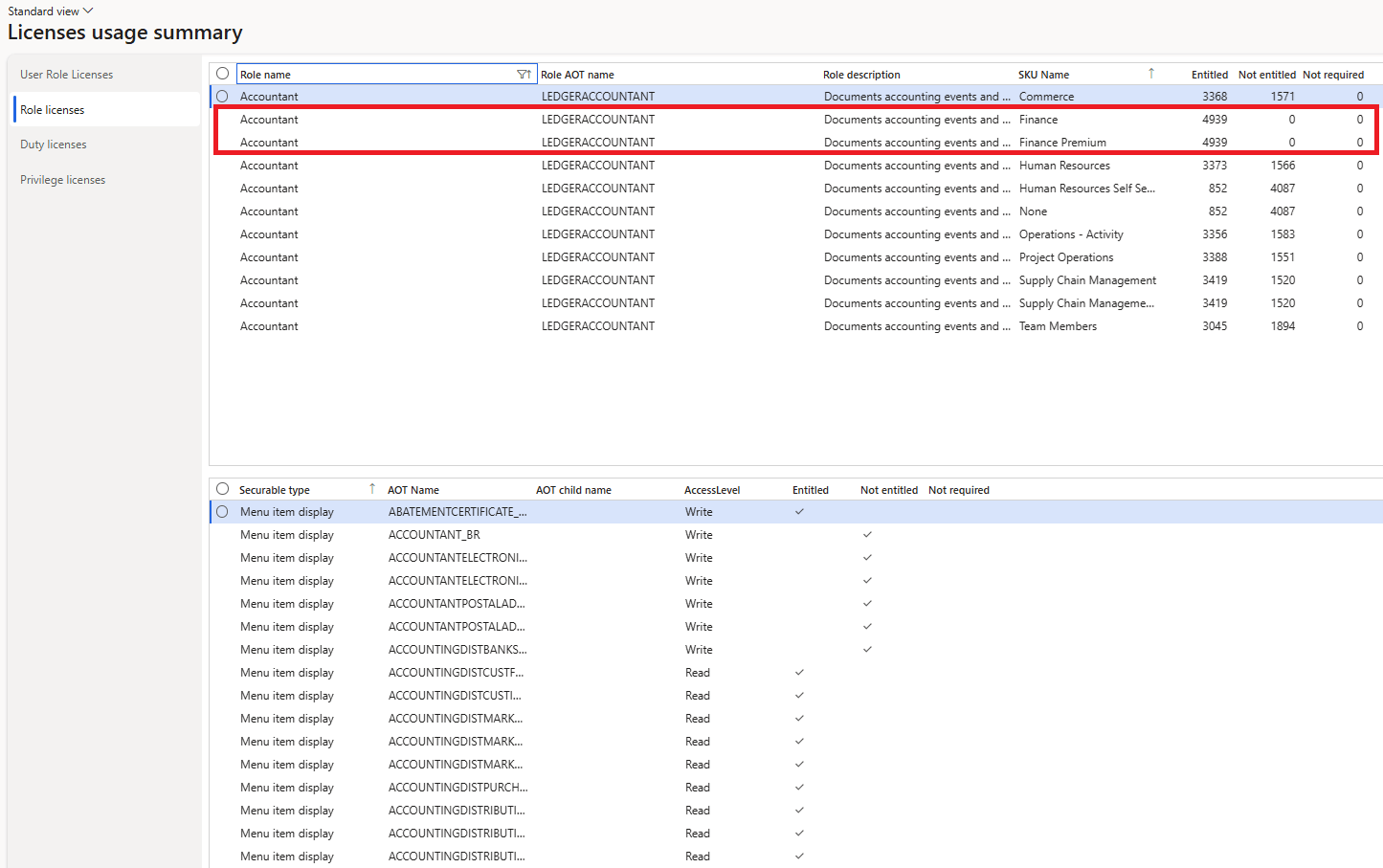
My suggestion for these reports is to always filter to a specific role / duty / privilege so you are able to see the actual license(s) that would meet the requirements for the security layer.
Using AI to Help Find Optimizations
Alright now, that we have an understanding of what the reports are showing how can we use this data to help us look for optimizations?
Well let’s first look where this data is coming from, if we look at the form information for the overview section we can find the form name and data source information:
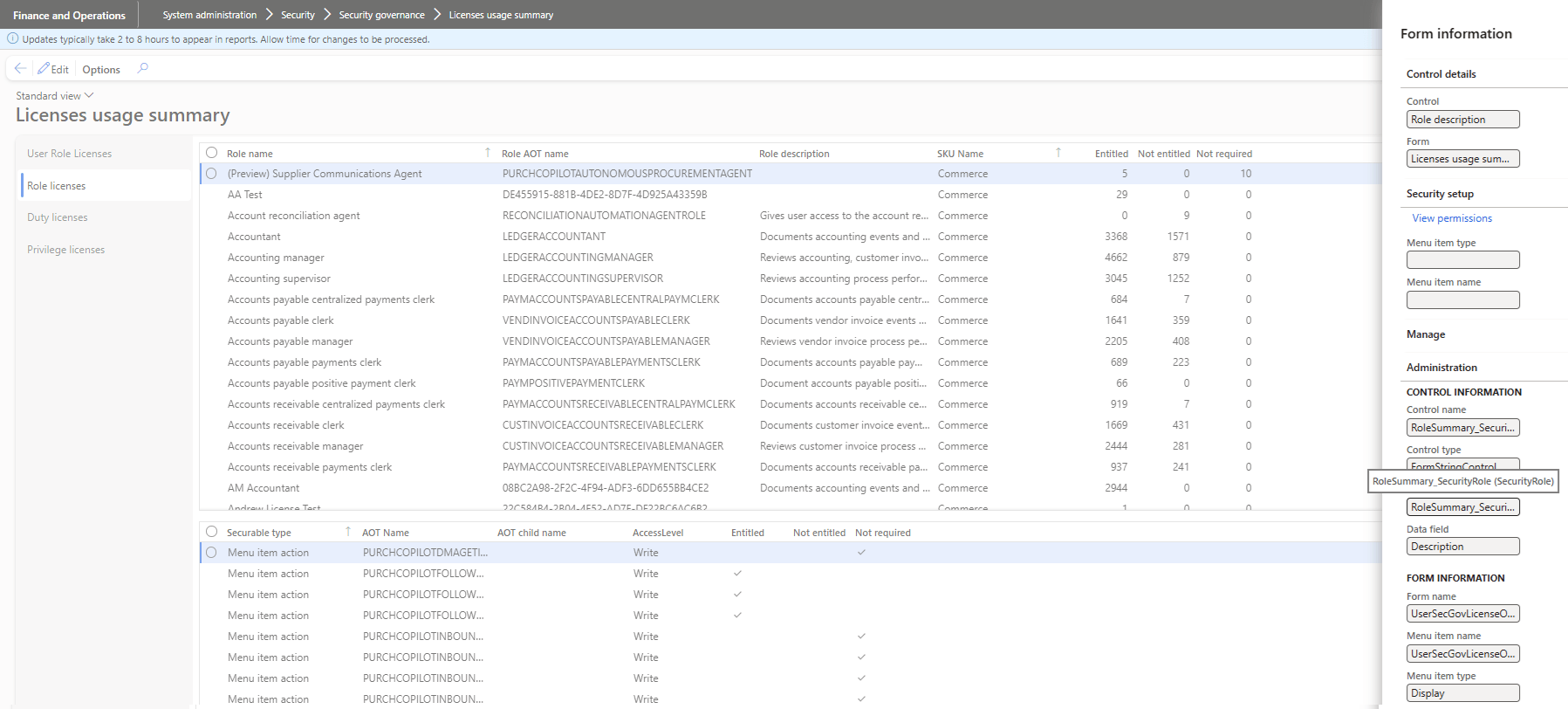
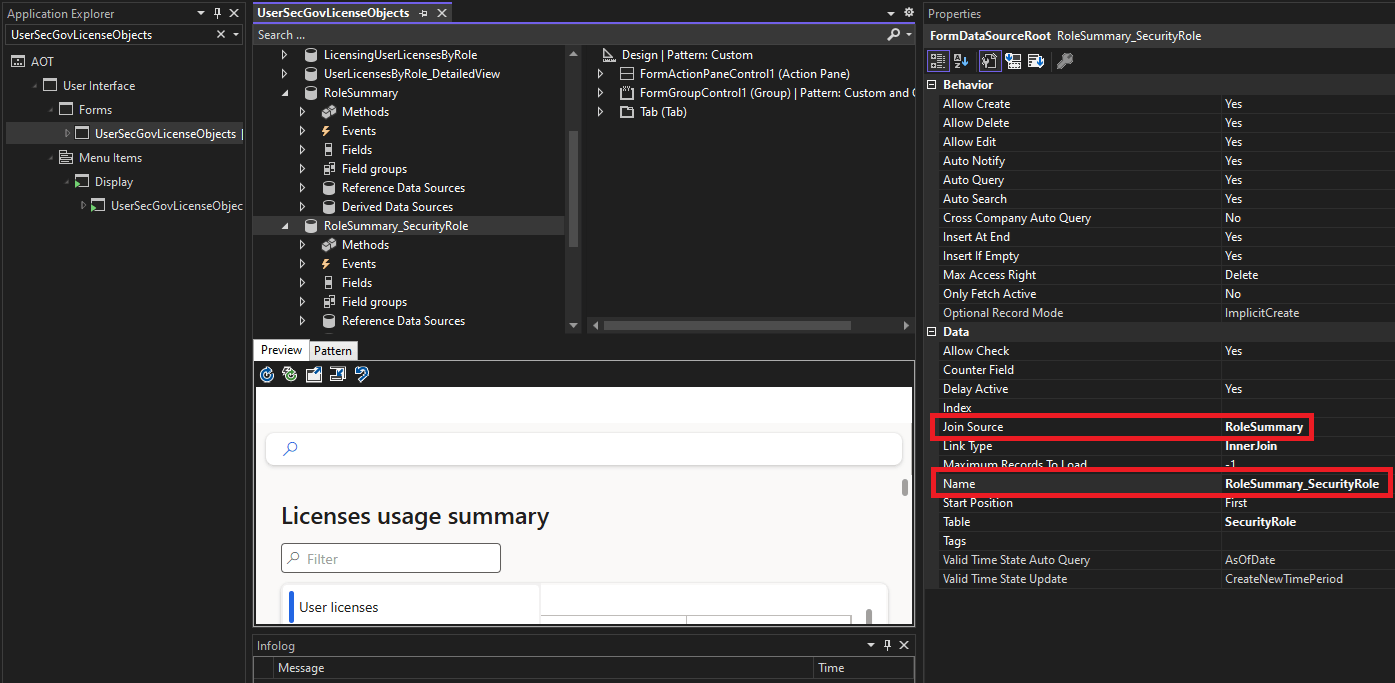
If we jump into the Application Explorer we can see this first data source (RoleSummary_SecurityRole) is just the base SecurityRole table, what we actually want the data this is joined to, which is the RoleSummary information:
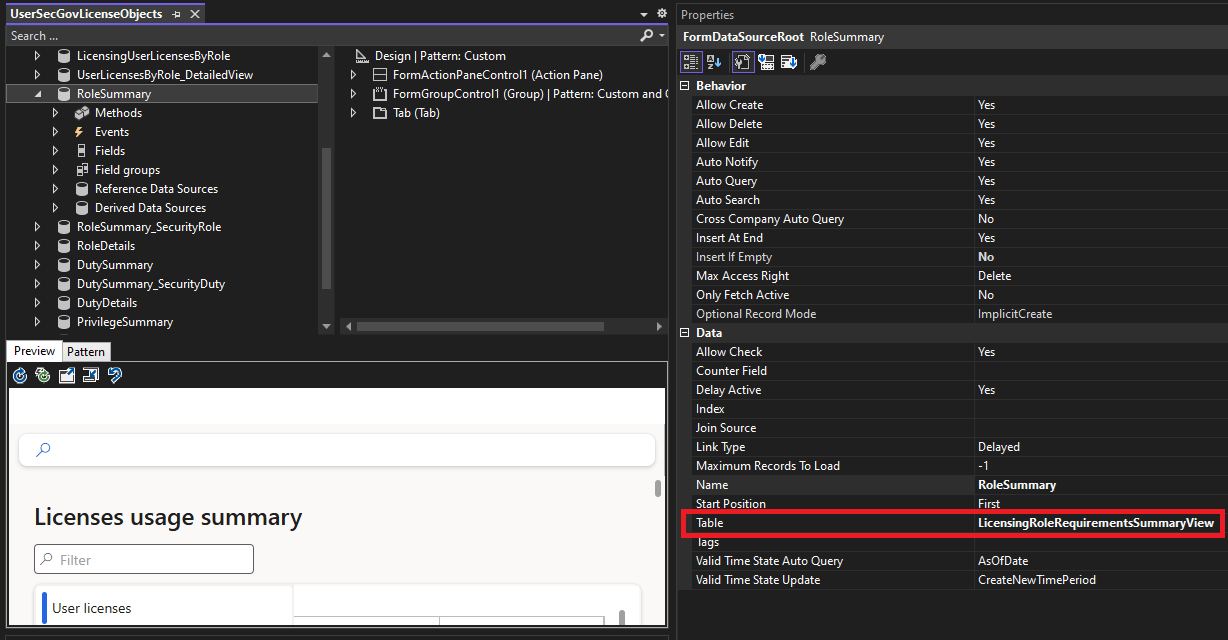
Which points us to the LicensingRoleRequirementsSummaryView (FYI there is a similar view for duties and privileges as well):
A quick SQL query later, we are able to get the underlying data:
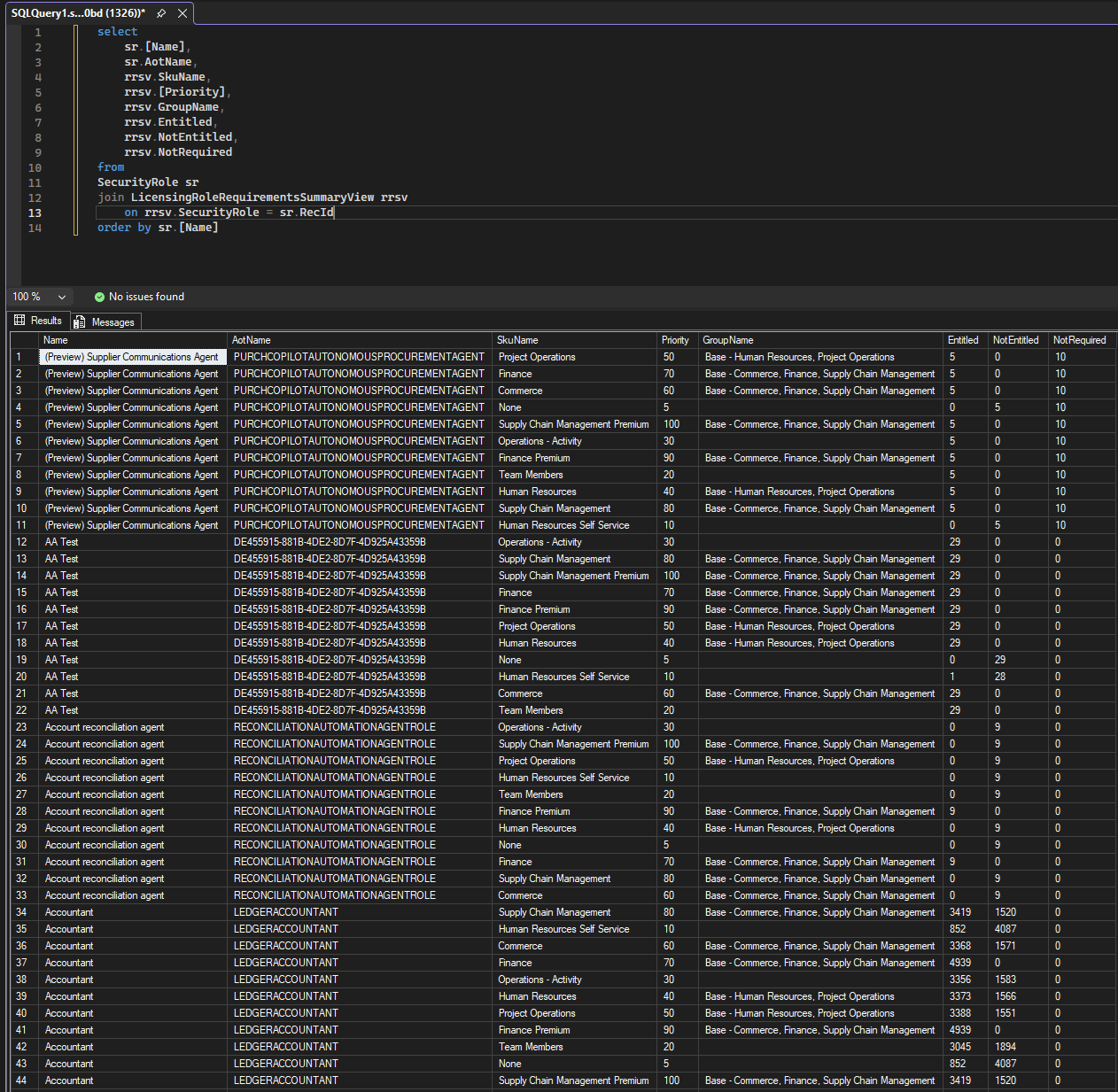
Let’s go ahead and copy this data to Excel:
And while we’re at it let’s grab the user role information using the Data Management framework (I used the same data package I created in this blog post: https://alexdmeyer.com/2025/12/01/using-ai-to-analyze-d365fsc-data/)
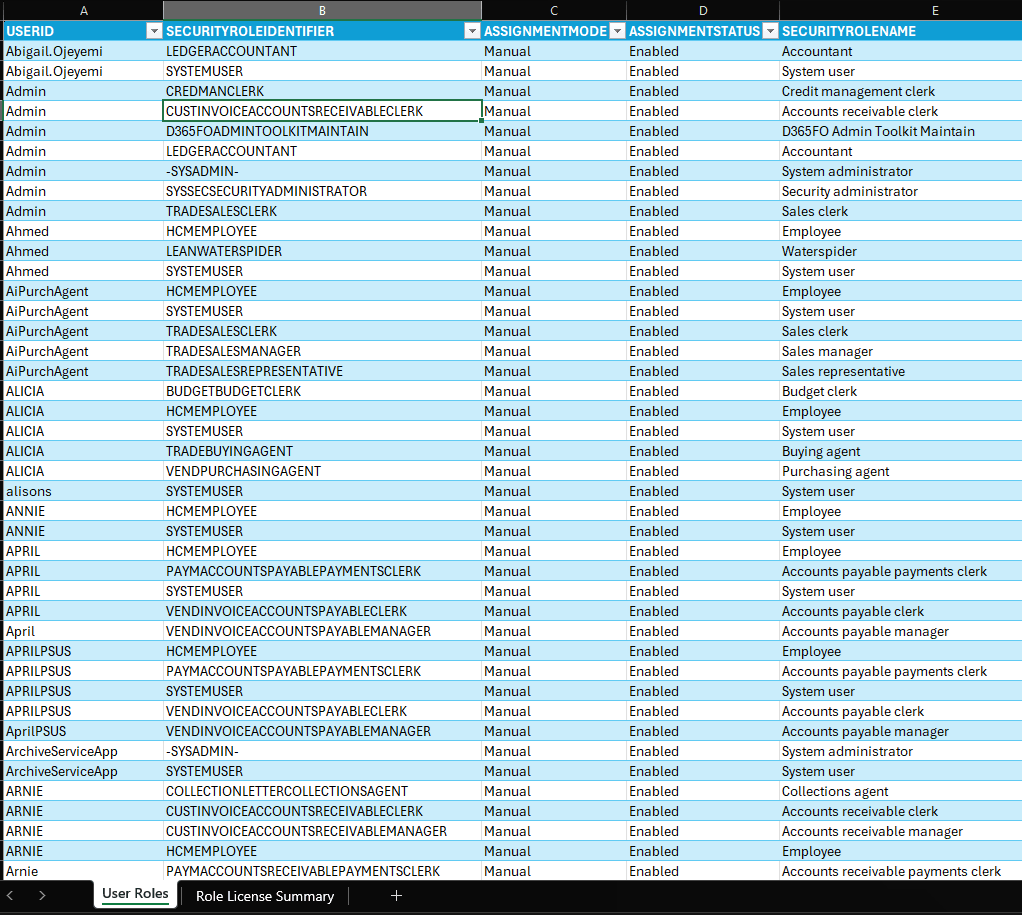
Now we have an Excel workbook with all of our user roles as well as the role license information. Let’s take this to our AI of choice and see if it can create an optimization plan for us.
I came up with the following prompt of the data to help generate a ‘waved approach to license remediation’: License Remediation Prompt
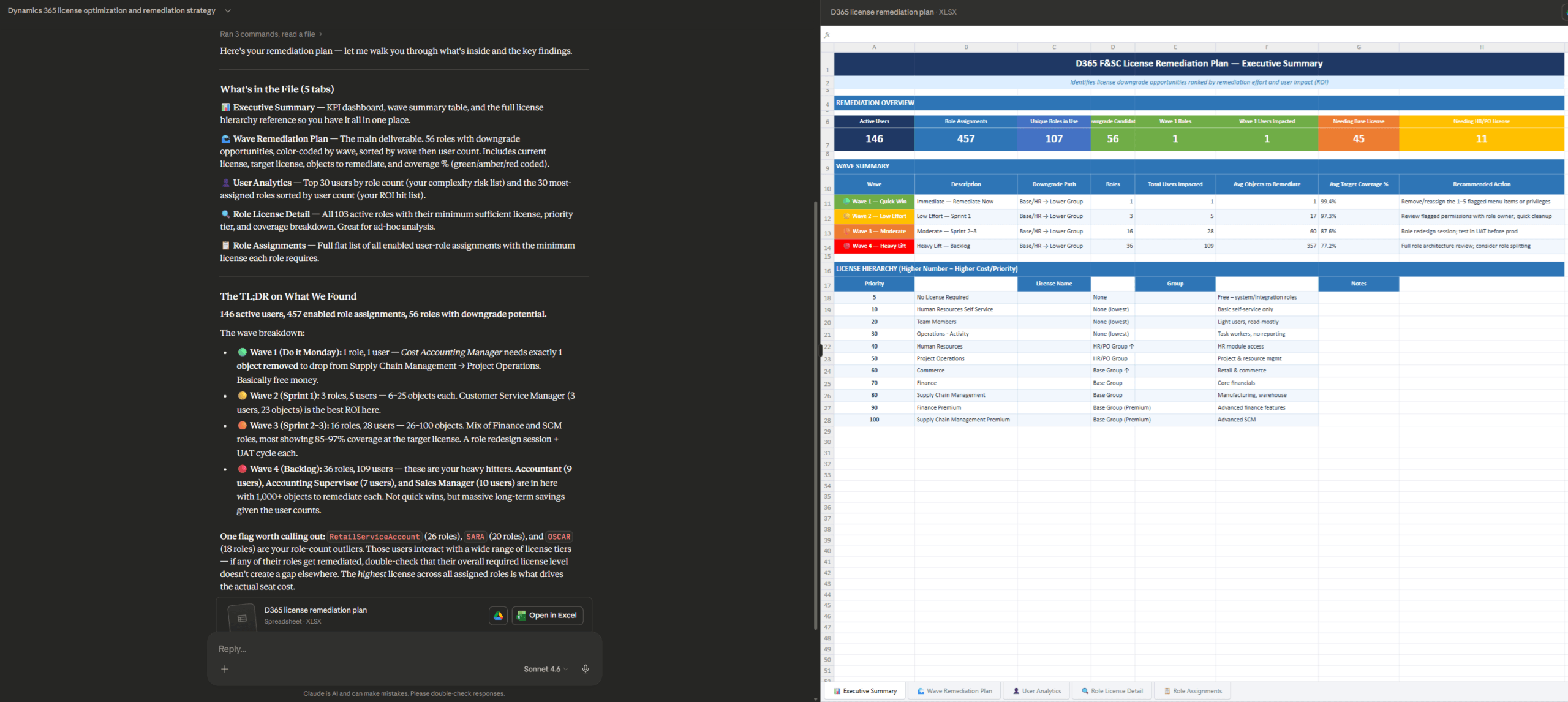
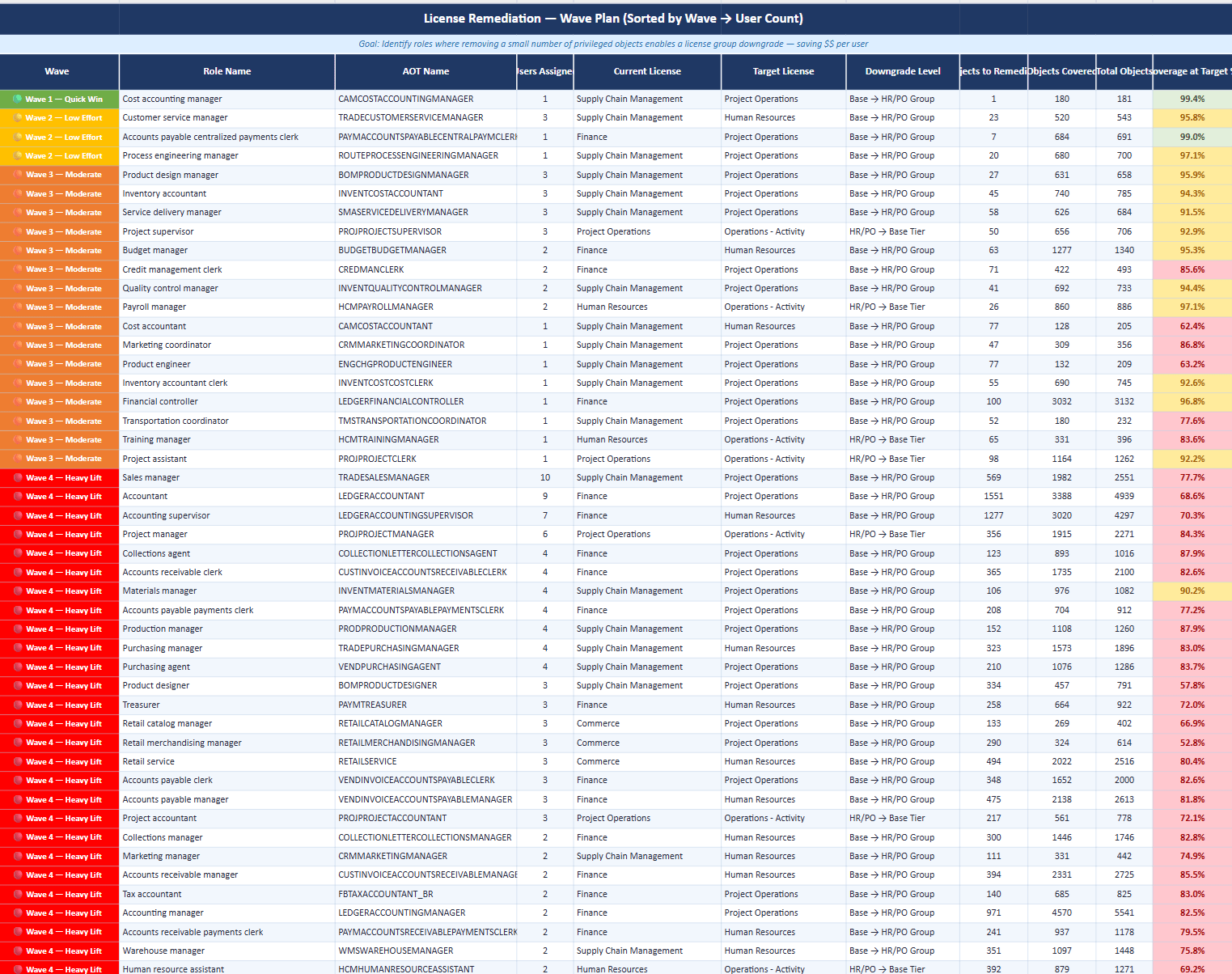
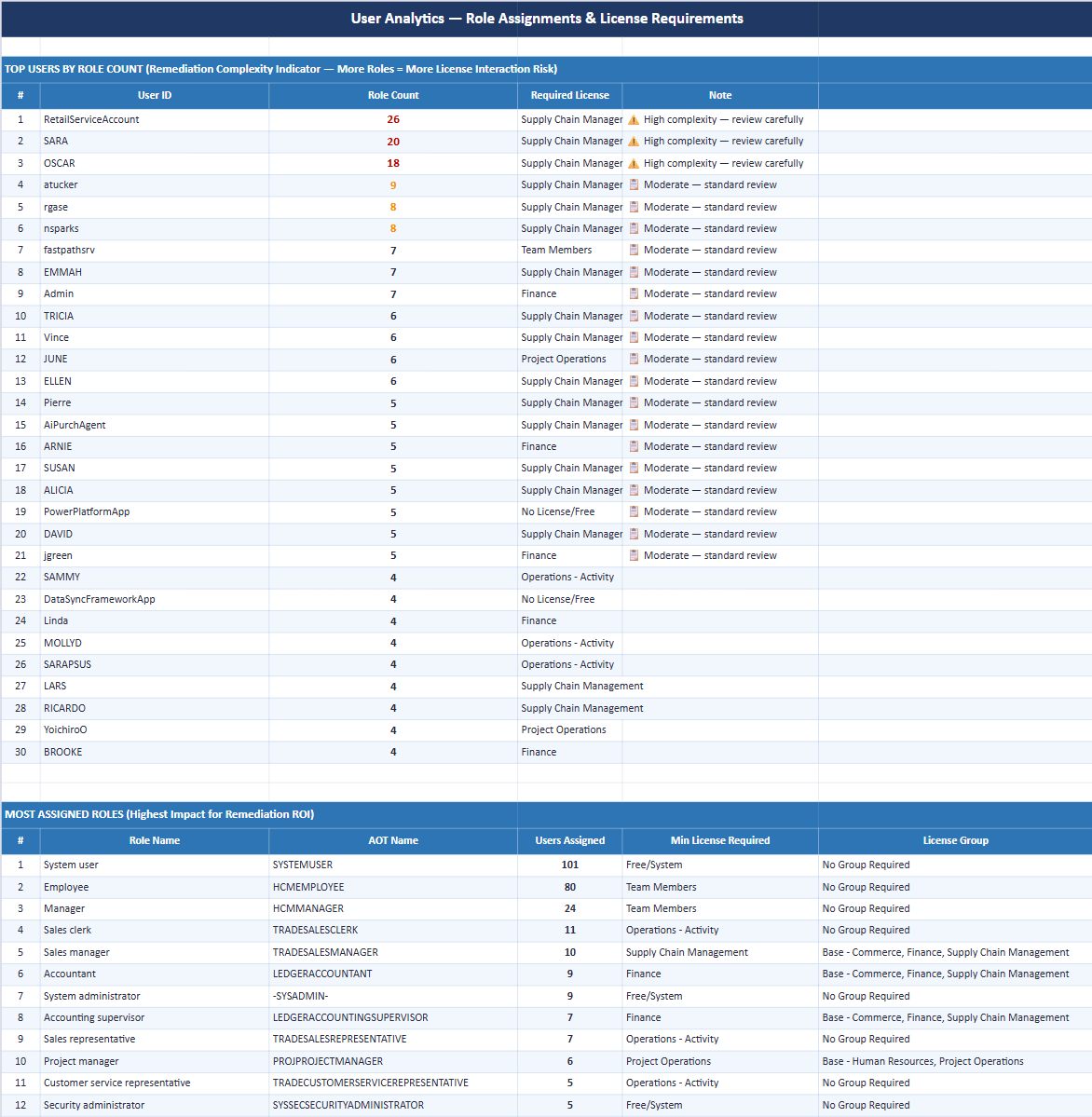
Note: There are also license detailed views if you want the object level detail (eg: LicensingRoleRequirementsDetailedView) but these views are much larger and would consume a lot of tokens to ingest and analysis (the LicensingRoleRequirementsDetailedView returned over 1.4 million records in my demo environment so yours will probably be MUCH larger).
License Usage Summary Report Limitations
There are a few limitations with some of this reporting, the biggest one that I hear quite often is that all of the reports go from security layer -> object but don’t show the intermediary assignments. For example, if you wanted to remediate a particular role because it had some objects that were ‘not entitled’ you wouldn’t know which duties / privileges where those objects resided in. You would have to utilize the View Permissions for that role to be able to determine how that role was being granted to those objects.
The second thing I hear quite often is, ok this is great from a ‘this is what the user/role/duty/privilege is currently assigned’ but ‘what did the user actually utilize / consume?’ This is where D365FSC telemetry data can come into play. There is no native functionality to show associate the actual usage of the system to the licensing reports.
And finally, another one I hear quite often is ‘Can I tie a monetary value to the licenses, as this would help give me a better way to gauge ROI on my licensing efforts as well as give me a clearer picture on how to prioritize my efforts. This actually was a feature when the Security User Governance first came out but was removed (I am not sure the exact reasoning for this).
These are just some of the issues I designed and developed as part of the Fastpath Assure licensing reports, if you have more questions surrounding this offering please feel free to get in contact with me at alex.meyer@delinea.com.
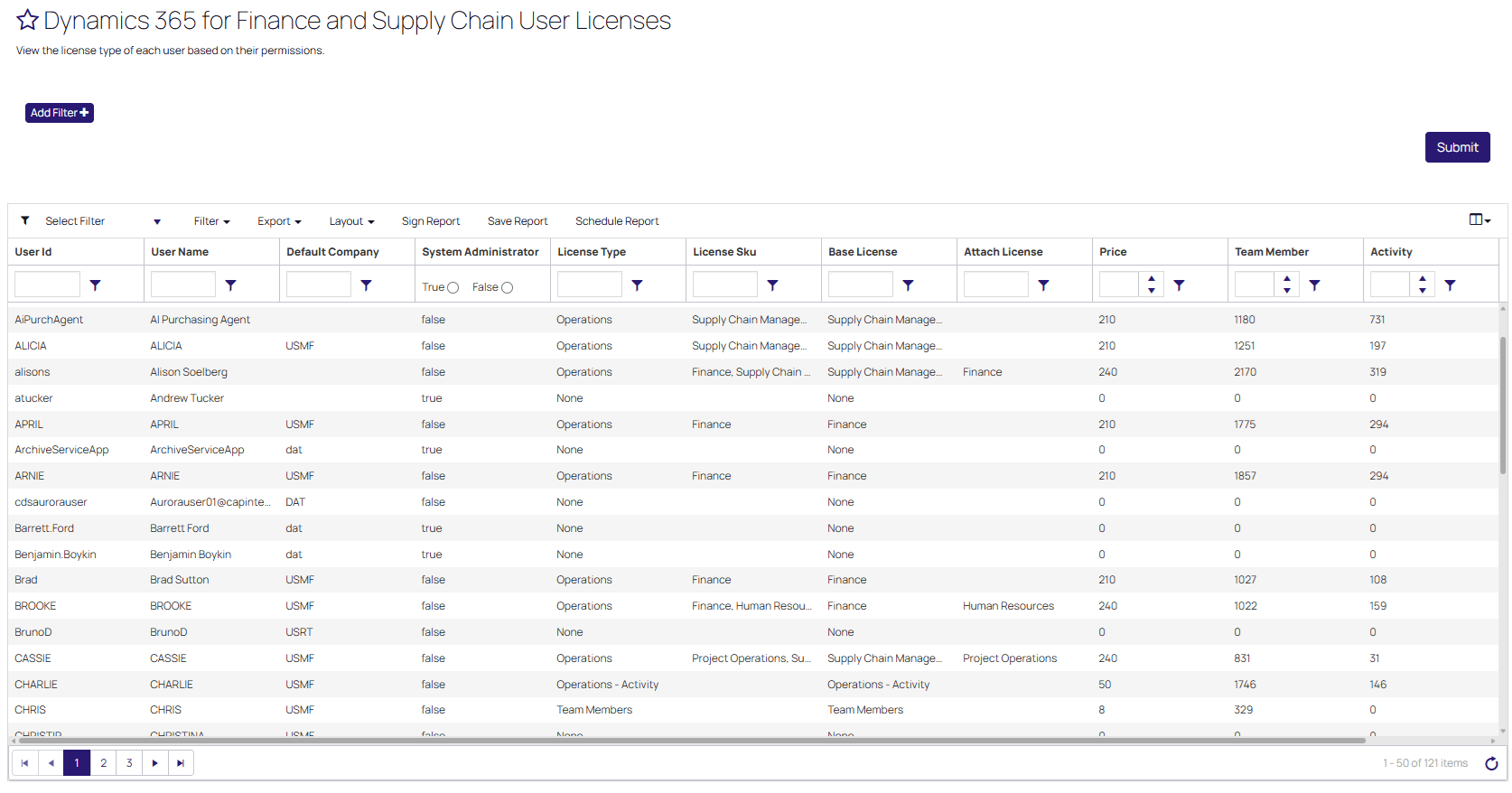
The base User License report shows the license type and base/attach licenses required for each user, it also includes the total price of each user:
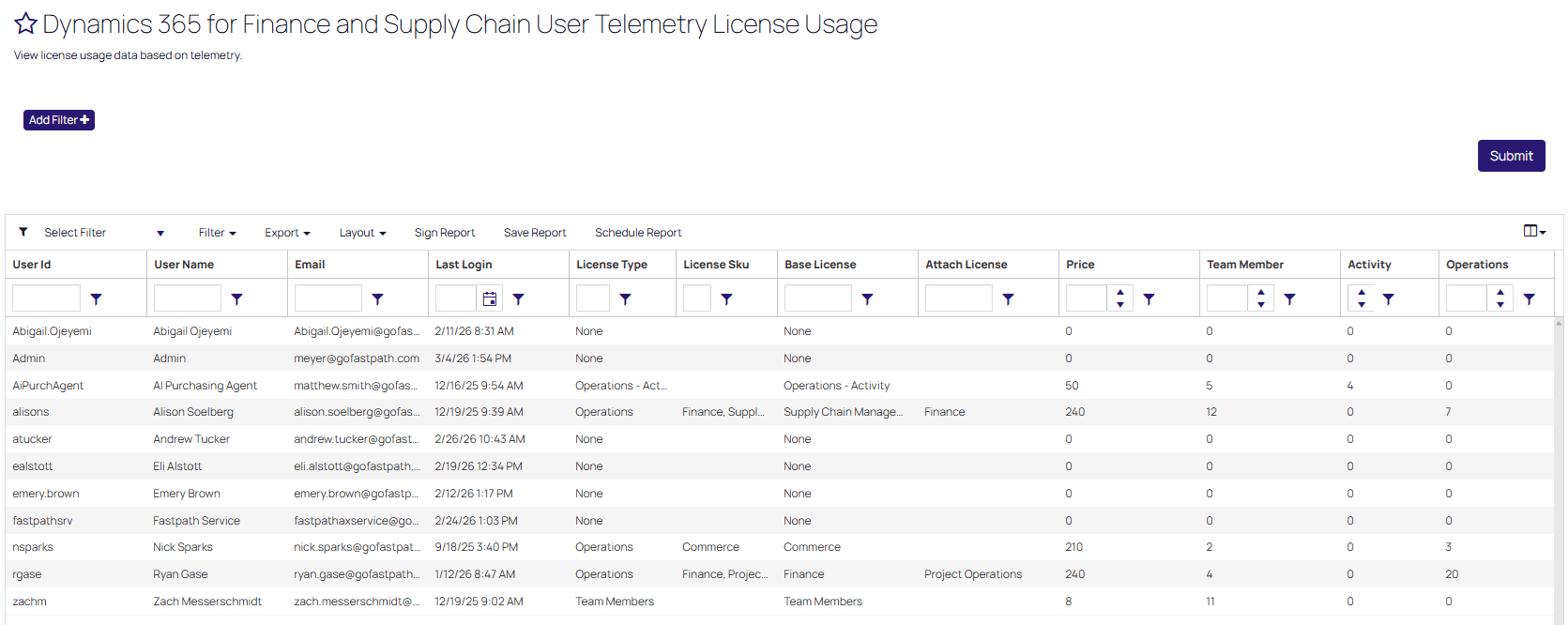
The Telemetry License Usage report shows the license each user requires based on their actual D365FSC usage captured for each user:
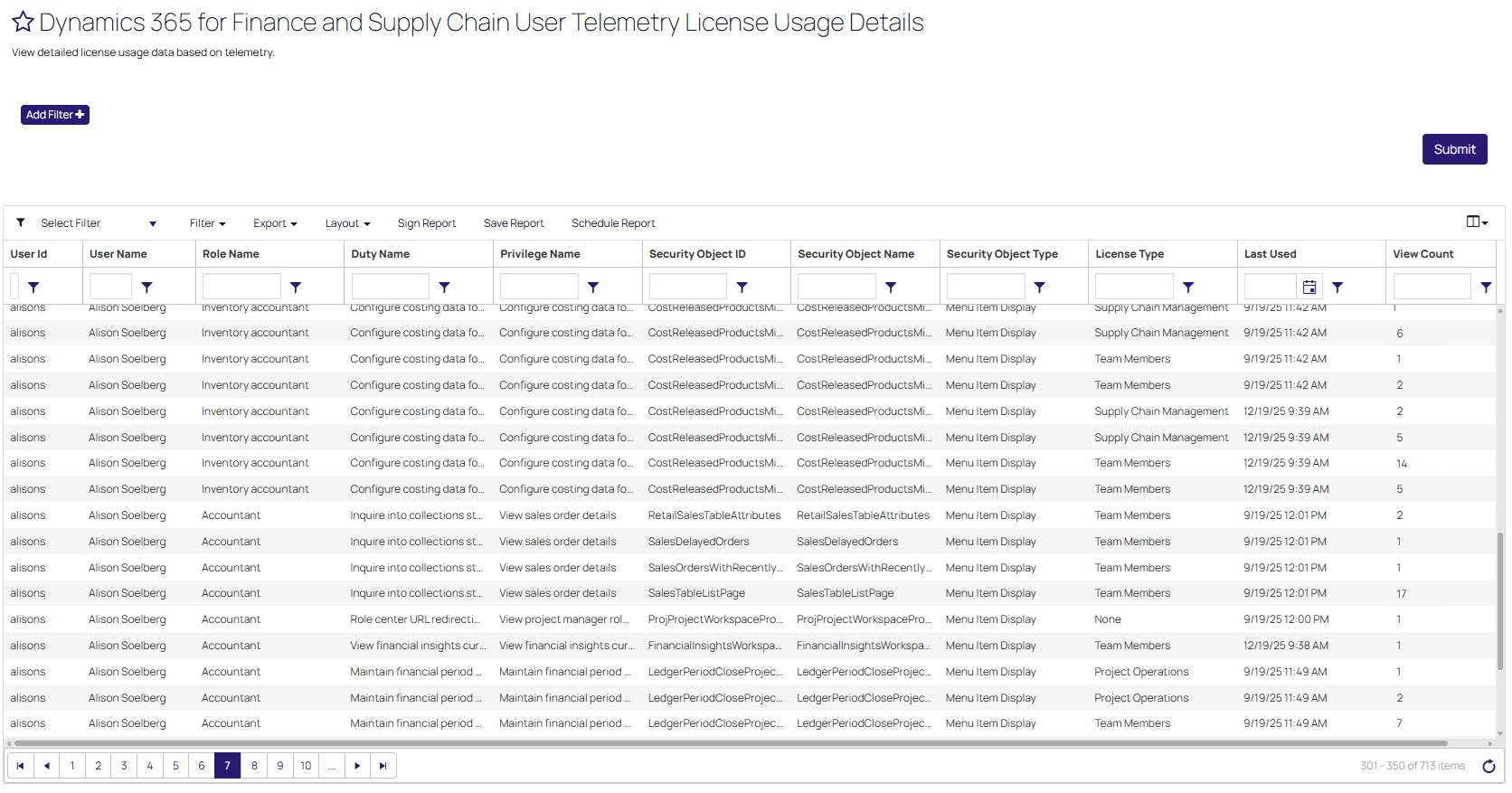
The License Usage Details report shows the entire role -> duty -> privilege -> object hierarchy as well as including the last time an objects was used and the number of times that user consumed / utilized that object:
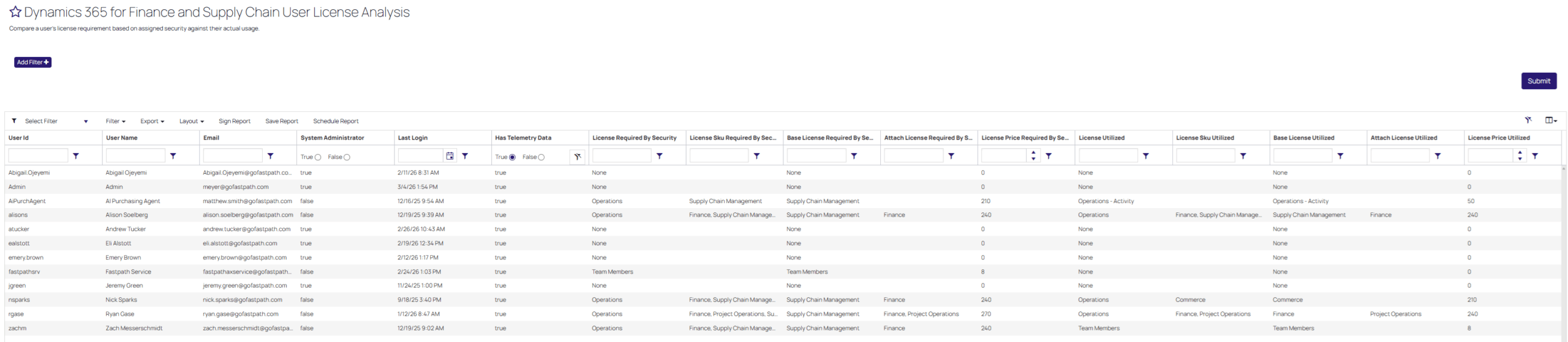
And finally a report to bring it all together to show what license the user is required to have based on their security as well as the license required based on their usage, this allows for finding optimization scenarios where a user is over licensed:
Conclusion
Hopefully this post helps with what reports are available as part of the License Usage Summary feature, how to read / interpret those reports, and the limitations of this feature. I also wanted to show other tools available if you want a more automated way to perform your license analysis.