

I recently stumbled across a great blog post describing how you could add a Language Service Protocol (LSP) to your Claude Code instance to help speed up code searches and minimize token usage.
The 2-Minute Claude Code Upgrade You’re Probably Missing: LSP
I would highly recommend reading through this blog post from Karan Bansal before reading the rest of this post as he does a fantastic job laying what the LSP feature adds and how to implement it.
I wanted to show the steps I had to take to add this functionality to a fairly large C#/.NET project.
The Problem
When you prompt Claude Code and it has to perform a code search, it falls back on protocols like ‘grep’ to find the class / method / code snippet you are referring to. While this works, it is slow has a potential to return too much data, and is expensive from a token perspective. What if we could give Claude ‘Intellisense-like’ abilities like we have within an IDE? This is exactly what the Language Server Protocol allows for.
How Do We Add This Functionality to Claude Code?
From a high level, the steps to add this look like:
1) Ensure your Claude Code instance is up to date, specifically it must be 2.0.74 or newer
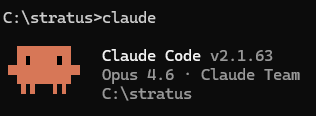
The version of Claude Code you are running can be found when you launch a Claude Code instance:
Or by typing claude –version in a command line:
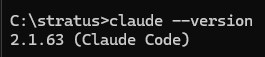
Be sure to close all instances of Claude Code before proceeding.
2) Now we need to install the Language Server itself, these live in a variety of places depending on the language you are looking to add. For C#, you can open a command prompt and type:
dotnet tool install -g csharp-ls

Then we need to add this as a Claude plugin by typing:
claude plugin install csharp-lsp
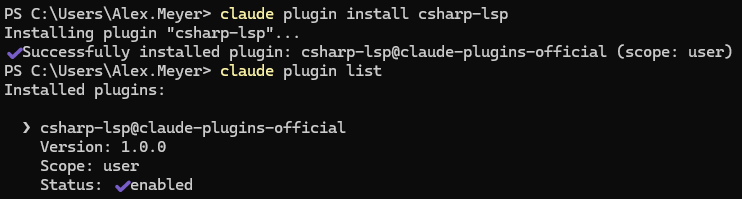
You can then validate that it was added as a Claude plugin by typing:
claude plugin list
And validating that the csharp-lsp@claude-plugins-official shows up and is enabled.
3) Now we need to enable the C# LSP within Claude, to do this first we need to find the appropriate settings.json file. In my case, I wanted this added to a specific solution (as opposed to adding it to my global Claude Code file), so I navigated to the solution folder -> .claude/settings.json and made the following changes:
- Added “env” : {“ENABLE_LSP_TOOL”:”1″}
- Added “enabledPlugins” : {“csharp-lsp@claude-plugins-official”:true} (this may already be there if the install of the C# LSP binary was successful in the previous step.
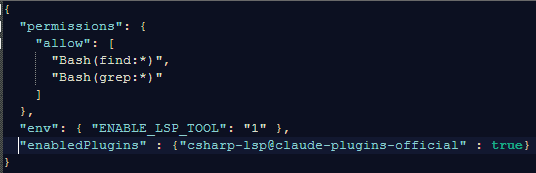
4) Even though we added LSP as a plugin, Claude will still sometimes fall back on using grep when it doesn’t need to. To help with this I added the following to my claude.md file. This part is optional but I did find it helps to ensure that Claude uses the LSP plugin when it can:
### Code Intelligence

Prefer LSP over Grep/Glob/Read for code navigation:
- `goToDefinition` / `goToImplementation` to jump to source
- `findReferences` to see all usages across the codebase
- `workspaceSymbol` to find where something is defined
- `documentSymbol` to list all symbols in a file
- `hover` for type info without reading the file
- `incomingCalls` / `outgoingCalls` for call hierarchy

Before renaming or changing a function signature, use
`findReferences` to find all call sites first.

Use Grep/Glob only for text/pattern searches (comments,
strings, config values) where LSP doesn't help.

After writing or editing code, check LSP diagnostics before
moving on. Fix any type errors or missing imports immediately.
5) Now we can launch Claude Code and test
I did a query before enabling this functionality so we could see the output using just grep:
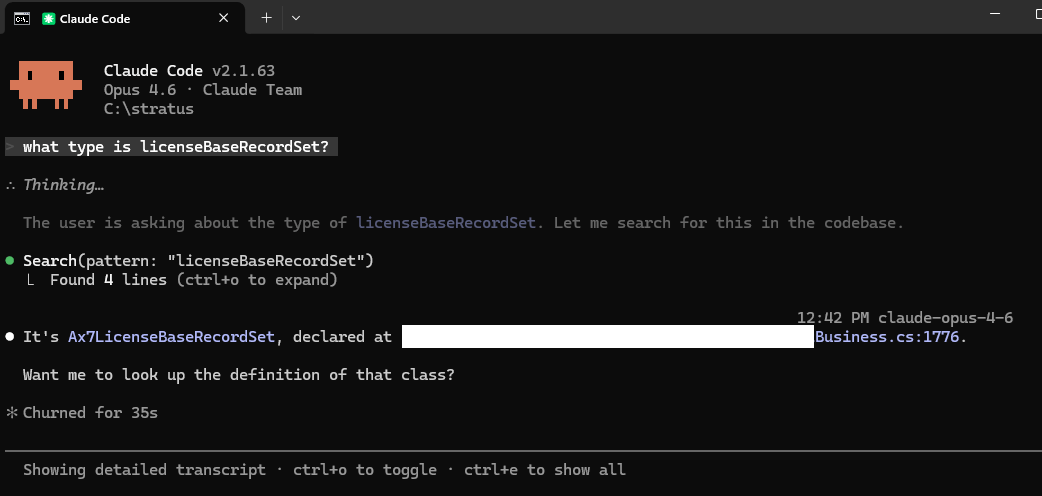
After installing the LSP and enabling the plugin, you can see as part of my queries now you see the LSP which means that it is correctly using this new functionality instead of relying on grep:

I’m still in the early phases of trying this functionality out but it does indeed seem to speed up code queries and help pinpoint where Claude Code needs to go faster within the solution.